


Welcome to this year’s challenge!
Please send us images of the children working and their work throughout the day and we will live blog it: andrew@sparkteesvalley.com
Click HERE to let us know if you are taking part (if you haven’t already signed up).
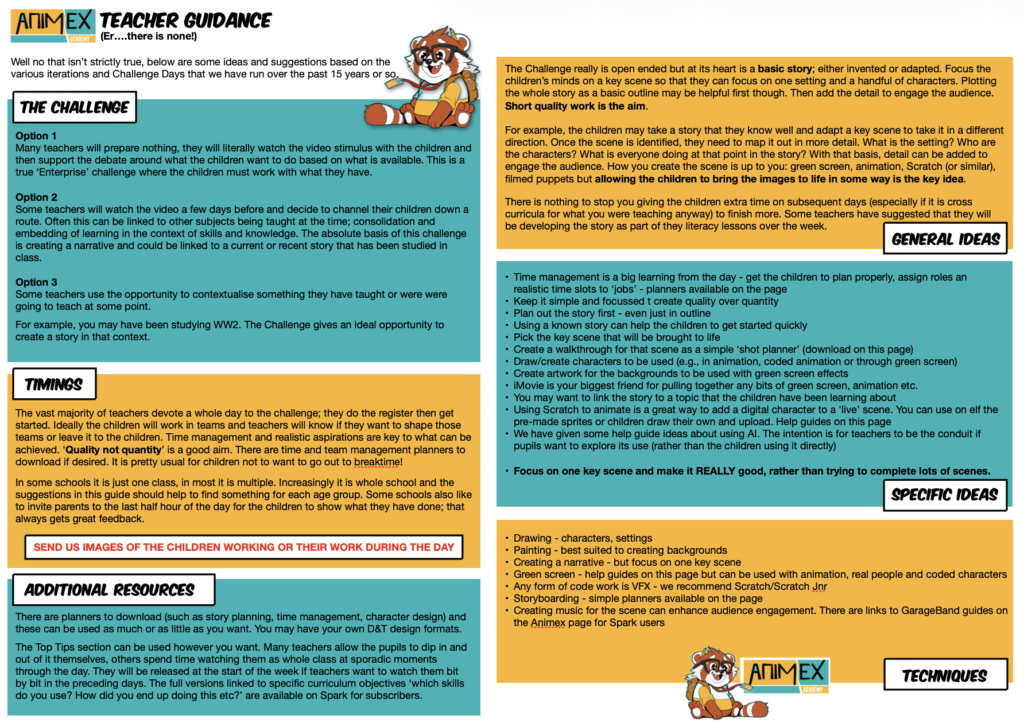
Teacher Guide with lots of ideas
Below are some of the fantastic people who spoke at the Animex Festival in Middlesbrough in November 2025. All of them are involved in the Games, Animation or VFX industry. We asked them to give you a Top Tip for creating a great piece of work as part of the Animex Challenge. This is what they said…
(Full interviews with them talking about what they do and how they ended up doing it now available for Spark users)
Darlene, VFX artist
Jack, Level Designer
Jo, Game Designer
Luke, Animator
Jake, Lead Programmer
Danni, Games Manager
Piotr, Technical Artist
Amanda, Artist
Elizabeth, Professor
Ed, UI Designer
Moses, Programmer
Idris, 3D Artist
Jackie, Producer
Oliver, Game Designer
Helpguides for lots of different techniques
There are only so many things you can do in one day so pick one and work on it…but these helpguides won’t disappear so feel free to come back to learn more another day, even at home.
First up, one from the vaults…..good old stop motion animation. You can add objects and effects really easily when creating a stop motion or simply finish the film, drop it in iMovie and use overlays from some of the other help guides.
So let’s think about adding a green screen layer in iMovie from our Spark resources. This is the basis of a lot of the techniques below.
And three short vids to create green screen overlays in Keynote to add to iMovie
Create the overlay
Crop it to size
Add the overlay to iMovie
Or use Scratch to create a coded green screen overlay
Create animated content in Scratch as a green screen
Record your animation and crop
Add green screen animation from Scratch into iMovie
Pre-rendering: how to reposition green screen overlays in iMovie
Resources that may help
Time and job planner
Simple story planner
Simple character planner
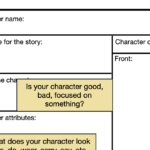
Annotated ‘how to’ detailed character planner
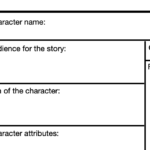
Detailed character planner
6 scene planner
Or what about some coded animation from our youngest learners? Scratch Jnr allows very young children (Reception upwards) to create fantastic sequenced scenes with all manner of effects going on. One of the best features allows children to draw characters and sprites themselves directly into the app then animate them.
AI is everywhere and although it is unlikely to ever recreate the creativity and skill of humans, it can help us in lots of ways. the help guides and resources below are designed to let you bring AI into your work today to explore, play and evaluate what is useful and what is not.
Simple AI background generation
Generating dynamic backgrounds
Generating green screen effects
Bringing characters to life
Some effects to play with in iMovie (downloadable HERE)